Posts

"SQL Service Pack 3 Upgrade / Install on Windows 2003 Server Cluster - Step by Step"

This article will provide you information on the below topics - SQL Service Pack 3 on Windows 2003 Cluster Servers Upgrade / Install How to install or upgrade Service Pack from SP2 to SP3 on SQL Server Version 2005 - Step by Step procedure Upgrade Pre-requisites

"To Check Windows 2000 and 2003 Serve Terminal Services Mode Command Line"

How to check the Terminal Services Mode - worked solution Try these links - http://support.microsoft.com/kb/320185 http://windowsitpro.com/article/articleid/44617/q-how-can-i-check-the-mode-of-a-server-thats-running-windows-server-2003-terminal-services-or-windows-2000-server-terminal-services.html http://support.citrix.com/article/CTX123097

"The InstallShield Engine (iKernel.exe) could not be launched. No such interface supported" - Working Solution

Check and Try this link, it might help: http://consumerdocs.installshield.com/selfservice/viewContent.do?externalId=Q108497&sliceId=1 Example: Q: I'm having a problem installing The Powerpuff Girls game. The installer starts and then tells me "The InstallShield Engine (iKernel.exe) could not be launched. No such interface supported". A: This error appears on some systems and is caused by a bug in the Installshield software. In most cases, the installation can be completed by deleting the folder C:\Program Files\Common Files\InstallShield\Engine. After deleting this folder, clear it from the recycle bin (empty the recycle bin), and restart the installation. http://www.annoyances.org/exec/forum/winxp/t1064933406 if the app is not compatible, we cannot do anything if its an OS issue, then it should be problem with ikernel.exe and install shield check and try these options.

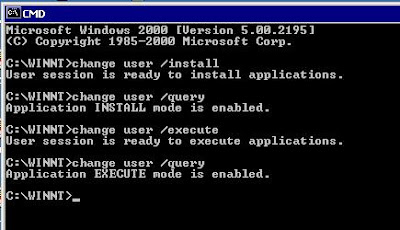
"How To Check Windows 2000 Terminal Services Mode" | "Command To Check Terminal Services Mode in Win2k Server"

Image
Go To Command Prompt and type: c:\change user /query  Here the more steps to check: This step-by-step article describes how to use the change user command to switch a Terminal Services server to Install mode. You must put a Terminal Services server in Install mode to install or remove programs on the server. You can put a Terminal Services server in Install mode either by using the Add/Remove Programs tool in Control Panel to add or remove a program, or by using the change user command at a command prompt. This article describes how to use the change user command. To Switch Terminal Services to Install Mode When you want to add or remove programs, put the Terminal Services server in Install mode. To do this: 1. Click Start, and then click Run. 2. In the Open box, type cmd, and then click OK. 3. At the command prompt, type change user /install, and then press ENTER. The following message appears: User session is ready to install applications. 4. Type exit, and then p...
MSTSC in Windows 2000 Server - How To Do?

Under Win2k Server, to enable a user to use remote desktop do the following: 1) Go to Programs | Administrative Tools | Configure your server 2) Click on Application Server | Terminal Services | Terminal Services Configuration 3) Right click on RDP-Tcp then choose Properties 4) Click on Permissions | Add, then add a group that you want to allow to connect to the computer 5) Set the permissions on the group by clicking on Advanced, then View/Edit on the group you want 6) Give the group at least Logon, Logoff, Connect and Disconnect 7) Ensure that the users you want to connect are in the appropriate group In Windows 2000 server, there is NO option like to connect from that server to another server using RDP (MSTSC.EXE), hence copy the win2k3 MSTSC.exe file and run - it works

How To Check Remote Computer OS Version and Service Pack details?

http://www.vistax64.com/powershell/56096-how-check-service-packs-remote-computers.html

Setting Up and Configuring the Skype on VoIP Step by Step Tips and Tricks| How to Setup Skype VoIP | Skype VoIP configuration Steps

Instructions Step 1: Download the Skype software from the Web site www.skype.com. Click on 'Download now' link to begin. Go to the 'Users Guide' section on the Web site. Click on 'installing Skype' link. Click on 'Get it now'. The downloading should begin. Step 2: Go to SkypeSetup.exe file. Bypass the warning dialog by clicking 'OK'. Choose the language you want and click 'Next'. Step 3: Review the License agreement. Choose 'I accept the agreement' check box and click 'Next'. The installation will begin. You can choose to launch every time you start your computer. Click on 'Finish' to start Skype. Step 4: Plug in the accessories to enable your Skype service. You will need a pair of headphones or speakers to listen to audio and a microphone to send voice over IP. You can purchase these in the Skype Store. Step 5: Check the USB ports on your computer. Plug in the microphone using t...