Posts

Showing posts with the label Tips and Tricks

IBM x3650 M4 Series Server Model - Activation Keys Backup to be taken for IMM Moduel II, why?
Image
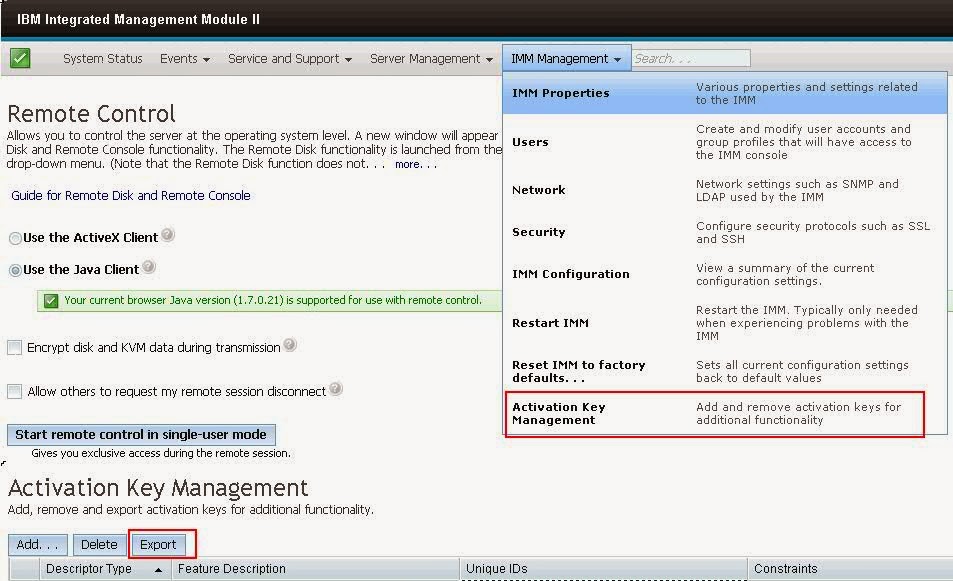
If you are planning to replace the system board (Mother Board) for M4 series of IBM xSeries 3650 model server, you should and must take the activation keys backup, otherwise you will miss the IMM key. IMM key something like iLO Activation key on HP servers. If that  iLO key didn't acivated, then you won't get the 'Remote Access' option. In the same way, IBM series requires a key to be activated to access the IMM console. IMM Activation to be backuped and restore once the new board get replaced. Here is the screenshot there you see more options what we discussed so far -

How to check 'Native MPIO' on Windows 2008 Server - Enable or Disable?

Image
This tip might help you guys to check the 'Native MPIO' setting on Windows 2008 Server from command line - To check the Native MPIO (Microsoft Multipath I/O) on Windows 2008 Server - If the Native MPIO is enabled, will show like below (DSM - Device Specific Model) If the Native MPIO is NOT enabled and installed some other vendor specific will show like below - (this server has Veritas Storage Foundation, hence showing like this)

'Remote Server Uptime' Check from Command Line

There are several ways to check the Microsoft Windows 'remote server' uptime information using 'SystemInfo' command line command. This is for the all the Windows versions like Windows 2000, Windows 2003, Windows 2008, Windows 2012 Server editions for both x86 and x64 bit versions. Here goes different ways to check the Remote Server Uptime from Command Line - Uptime.exe This can be downloaded from the Microsoft website. However this helps only to check your local server uptime. SystemInfo: Go to command prompt and run this command. If you are using 2008 Server, then right click on the Command Prompt Icon, 'Run as Administrator' systeminfo /s | find "System Up Time" PSEXEC: PSEXEC will be used to get the remote server uptime information in the batch files, VB scripts.

The system cannot find the specified path - EMC Grabs error

We are trying to run the EMCRPTS___.exe (x64 / x32 bit) version on one of the server, however it is throwing some error like 'The system cannot find the specified path' and come out without prodcuing a report. Then we tried investigating why it is not running and not creating the report in c:\windows\EMCReports folder. Found that issue with the existing EMCReports folder which is causing the issue. When we run the EMCRPTS__.exe file, it tries to create a folder called EMCReports in c:\windows path. Some times, this folder already exists and won't allow to overwrite information under this. Remove the EMCReports folder from the c:\windows directory and re-run the EMCRPTS.exe file.

Can IIS 6 upgraded to IIS 7 Version on Windows 2003?

If you want try upgrading the existing IIS 6 version to IIS 7 on Windows 2003 Server with SP1 / SP2 / SP3, however this won't possible as long as you have Windows 2008 Server installed. This is been suggested by the Microsoft and not possible to upgrade the version from IIS6 to IIS7. Here goes few more reviews on the same in different websites -   http://forums.esds.co.in/f4/ugrade-iis6-iis7-4118/     http://stackoverflow.com/questions/1542831/how-to-upgrade-from-iis-6-0-to-iis-7-0-in-windows-2003  

What's New in Microsoft iSCSI Initiator - 2008 Server R1 & R2 versions

Microsoft iSCSI Software Initiator enables you to connect a Windows® host computer to an external iSCSI-based storage array via an Ethernet network adapter. You can use Microsoft iSCSI Initiator in your existing network infrastructure to enable block-based Storage Area Networks (SANs), which provide iSCSI target functionality without having to invest in additional hardware, as well as to enable the use of iSCSI storage devices in the home and small office. What are the major changes?   The following changes are available in Windows Server® 2008 R2: User interface enhancement and redesign The iSCSI Initiator user interface has been redesigned to allow easier access to the most commonly used settings. Additionally, the iSCSI control panel is included in Server Core installations of Windows Server 2008 R2, which enables administrators to configure iSCSI connections through the more familiar user interface in addition to the command-line interface. Ne...

Check Phonetic attributes in Active Directory

Sometimes you come across a user account or maybe a resource that is named in a way that is not common to your native language.  When users search for this resource they may have some difficulty.  In Active Directory there is now several phonetic attributes to help your users out. ms-DS-Phonetic-First-Name Contains the phonetic given name or first name of the person. ms-DS-Phonetic-Last-Name Contains the phonetic last name of the person. ms-DS-Phonetic-Department Contains the phonetic department name where the person works. ms-DS-Phonetic-Company-Name Contains the phonetic company name where the person works. ms-DS-Phonetic-Display-Name The phonetic display name of an object. In the absence of a phonetic display name the existing display name is used. To test this I manually populated the ms-DS-Phonetic-First-Name attribute with Bbrraadd for the user named Brad.  In Active Directory Users and computers, I did a search for the name Bbrr . ...

How To Check the default tombstone value for computer accounts in Windows Server 2008

The tombstone value for Microsoft Networks was 60 days. However  t he problem with that is for the computers did not always make it from the factory to being joined on the domain in time. For that reason, Microsoft started to change the tombstone value to 180 days. Here are two guidelines to help you determine the tombstone value: On a domain controller in a forest that was created on a domain controller running Windows Server 2003 with Service Pack 1 (SP1), Windows Server 2003 with Service Pack 2 (SP2), Windows Server 2008, or Windows Server 2008 R2, the default value is 180 days. On a domain controller in a forest that was created on a domain controller running Windows 2000 Server, Windows Server 2003, or Windows Server 2003 R2, the default value is 60 days. To absolutely know, follow this procedure on your Windows 2008 domain controller: 1. Click Start , point to Administrative T...

Fix: The Site Cannot Continue because one or more of these Windows Services is not running:

Image
This is some kind of common error while doing the patching to the windows 2003 servers - The Site Cannot Continue because one or more of these Windows Services is not running Here goes the error screen shot - What we need to do if you face this error, just follow the below steps - Solution: Enable (Start) the BITS service manually.

Licensing Protocol error on Windows 7

The Remote Computer Disconnected the session because of an error in the Licensing protocol This is been annoying every server administrator in all the big environments when the local laptops / machines upgraded to Windows 7 from XP or lower versions. Follow the below solution to resolve your issue - Note: Please make sure you take backup the registry (full or required keys) before you start doing below steps - 1. Run regedit. 2. Go to HKEY_LOCAL_MACHINE\Software\Microsoft\MSLicensing. 3. Take a backup of the hardwareID and Store keys under MSLicensing. 4. Delete the hardwareID and Store keys. 5. Reboot the PC. This creates new hardwareID and Store keys. 6. For Vista and Windows 7 to create the new keys you need to run remote desktop as the administrator after rebooting the computer.

HP DL380R G3 Smart Start CD x32 Version Download Link

Image
Here goes the HP DL380R G3 Smart Start CD x32 Version Download Link Click here to visit the link Search for HP SmartStart CD x32, then search will take you to the below screen -

How To: Cygwin Installation Step by Step Video

You can follow the below video to how to install the Cygwin SFTP software on Windows servers. This video has step by step configuration settings. If you have any queries related to this, please leave a comment we will try to answer asap. Cygwin SFTP Help, Installation Guide, Troubleshooting Guide, Step by Step Configuration, Un-install and re-install steps, service stop and start process

Cygwin service not starting - is it port 22 issue or OpenSSH already installed?

In our environment Cygin is used for the secured FTP logins. We used to face lot more difficulties in installing / troubleshooting related to Cygwin. Some times installation will go smoothly however sshd service won't start due to so many reasons, here goes one of the reason and solution - SSHD on Windows servers and issues with Cygwin SSHD Common issues on CYGWIN: SSHD service not starting Description: different issues like in-proper cygwin installation, login from different user and install will have issues, home directory not creating etc Resolution: login from local admin and try to install the cygwin software, will have less issues. Note: Make sure you don't have already cygwin folder in C or D drives before you install

hponcfg_gui.exe requires Microsoft .NET Framework 2.0 (or later) to run

Image
DESCRIPTION HP Lights-Out Online Configuration Utility (hponcfg_gui.exe) will not initialize if Microsoft .NET Framework 2.0 (or later) is not installed on the system. When this occurs, one of the following messages may be displayed:   OR   SCOPE Any ProLiant server with Integrated Lights-Out 2 (iLO 2) and running Windows Server 2003 and HP Lights-Out Online Configuration Utility (hponcfg_gui.exe). RESOLUTION HP Lights-Out Online Configuration Utility (hponcfg_gui.exe) requires that Microsoft .NET Framework 2.0 (or later) be installed on the system. To ensure that the Lights-Out Online Configuration Utility functions properly, install Microsoft .NET Framework 2.0 (or later). The latest version is available on the Microsoft Download Center at the following URL: http://www.microsoft.com/downloads/Search.aspx?displaylang=en

HPONCFG GUI Utility / Tool Download Links - x32 & x64 bit versions, 2003 & 2008 Windows Versions

Here goes the links to download the versions. With this new GUI version, we can change /reset the iLO password,  change the IP address, Subnet & Gateway configurations and many more - HP Lights-Out Online Configuration Utility for Windows 2003/2008 x64 Editions Click here to download x64 bit version Type: Software - Lights-Out Management Version: 3.1.1.0 (22 Nov 2010) Operating System(s): File name: cp013639.exe (1.0 MB) HP Lights-Out Online Configuration Utility for Windows Server 2003/2008 Click here to download x32 bit version (3.2.0.0) Type: Software - Lights-Out Management Version: 3.2.0.0 (18 Jul 2011) Operating System(s): Microsoft Windows Server 2003, Microsoft Windows Server 2008 W32 File name: cp015357.exe (950 KB) HP Lights-Out Online Configuration Utility for Windows Server 2003/2008 Click here to download x32 bit version (3.1.0.0) Type: Software - Lights-Out Management Version: ...

How To: Tips to delete _vxfiVspCacheFile.vsp file in NBU_VSP_Cache folder

Image
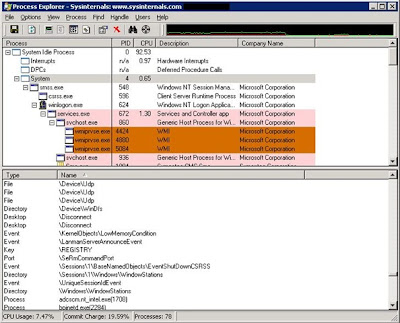
This error been facing since quite a long time by all the system admins who are working on the servers which has netbackup client installed irrespective of Symantec Netbackup Client versions. Today we have faced some difficulty in deleting the _vxfiVspCacheFile.vsp file on D drive which occupied more than 3gb of space. We are planned to do without reboot how to delete this file. When we are trying to delete it is not allowing to delete as it got locked by the process. Hence we tried using 'Process Explorer' tool which is provided by SysInternals (Microsoft) to unlock / release the handles. Here goes the procedure how to do that - Download Process Explorer v15.05 (procexp.exe) file from Windows Sysinternals website link So go download yourself a copy of Process Explorer. You don’t need to install anything to use it… so just unzip a copy of it somewhere on your server(s) in anticipation of the day you’ll need it. Launch Process Explorer, and then click View –> ...

HP Intellectual Property Licensing Link

The below information I just copied and pasted from HP site for your information. Here goes the link to check the same - http://h20229.www2.hp.com/hpvps/OnlinePatentSales.html Lot ID Description Offer end date Submit an Offer W110812-A Microprocessors and Graphics Processing NEW The patents in this lot generally relate to microprocessors and graphics images. In particular, ... 01/12/2012 4:00 pm PST Submit offer » W110729-A Projector and Image Control Methods The patents in this lot generally relate to Projectors and Display Devices. In particular, they ... 12/29/2011 4:00 pm PST Submit offer » W110722-A Projector - Image Enhancement Methods The patents in this lot generally relate to Projectors and display of images. In particular, they ... 12/22/2011 4:00 pm PST Submit offer » ...

Alert: SNMP Agent Not Responding, why this error occurs?

What if you receive an HP SIM Alert 'SNMPAgentNotResponding'? Just need to check whether the server is giving the ping response or not. Login to the server and check whether during this time, server got rebooted or some issue related to network card / cable etc. This error will come when Monitoring Tool try to ping the server, during that time, if server is not responded, then this alert will raise. More info about the same case - Scenario : The SNMP agent is not responding. For example, the community string for this SNMP agenthas been changed, or NNMi’s communication configuration settings have not yet been updated, butthe node is operational (IP addresses can be pinged). NOTE : Ping is not enabled out-of-the box. This scenario requires that at least one address is polled. Root Cause : The SNMP Agent is not responding. Incident : None generated. Status : The SNMP Agent is in Critical status. Conclusion : SNMPAgentNotResponding Effect : The node status is ...

Windows 2008 Cluster Issue - 'The RPC server is unavailable'

The action 'Manage a Cluster...' did not complete. Could not open a connection to the cluster 'server name'. An error occurred opening cluster 'server name'. The RPC server is unavailable. Today I've tried to login one of my client's windows 2008 cluster server, on node 1 - I know that is a cluster server, however when I open Failover Cluster Management, I couldn't find any thing there in the tree. I was little shocked and tried to logon to Node 2 to check what is the issue. In Node 2 it is OK, I could see all the information - This is something strange that I've faced with windows 2008 server OS. And started the troubleshooting like step by step - 1.Cluster Service Check 2.RPC Service 3.Dependencies etc All looks good to me on both nodes. Now what is the next step? I suspect could be some issue with my login id, hence I've asked one of my co worker to login with his credentials. Again shocked by seeing the result, it is showing ...

List of Windows 2003 Admin Tools Run from Command Line

AD Domains and Trusts domain.msc Active Directory Management admgmt.msc AD Sites and Serrvices dssite.msc AD Users and COmputers dsa.msc ADSI Edit adsiedit.msc Authorization manager azman.msc Certification Authority Management certsrv.msc Certificate Templates certtmpl.msc Cluster Administrator cluadmin.exe Computer Management compmgmt.msc Component Services comexp.msc Configure Your Server cys.exe Device Manager devmgmt.msc DHCP Managment dhcpmgmt.msc Disk Defragmenter dfrg.msc Disk Manager diskmgmt.msc Distributed File System dfsgui.msc DNS Managment dnsmgmt.msc Event Viewer eventvwr.msc Indexing Service Management ciadv.msc IP Address Manage ipaddrmgmt.msc Licensing Manager llsmgr.exe Local Certificates Management certmgr.msc Local Group Policy Editor gpedit.msc Local Security Settings Manager secpol.msc Local Users and Groups Manager lusrmgr.msc Network Load balancing nlbmgr.exe Performance Montior pe...