Understanding Organizational Units
An Overview of Organizational Units (OUs)
An organizational unit (OU) is a container that is used to logically organize and group Active Directory objects within domains. OUs are not part of the DNS namespace. They are used to organize Active Directory objects into logical administrative groups. OUs therefore serve as containers in which you can create and manage Active Directory objects. OUs are considered the smallest unit to which an Administrator can assign permissions to resources within Active Directory.An OU enables you to apply security policies, deploy applications, delegate administrative control for Active Directory objects, and to run scripts. An important thing to understand is that OUs are not security principals. The user accounts, group accounts, and computer accounts within the OUs are security principals.
The Active Directory object types that can be located in OUs are listed below:
- User, group, and computer objects; shared folders, printers, applications, and other OUs from the same domain.
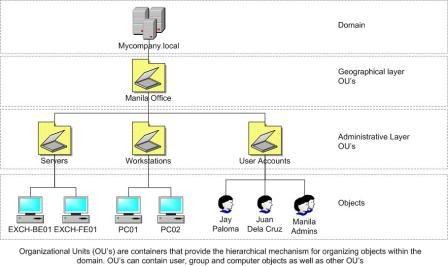
A few benefits of OUs are summarized below:
- OUs can be nested to support different levels of hierarchy
- Each domain in the Active Directory environment can have its own OU structure. The OU structure of one domain is independent of another domain's OU structure.
- It is fairly simple to change an OU structure. OU structures are much more flexible than domain structures.
- OU configuration settings can be inherited by objects in child OUs.
- Group Policy settings can also be applied to OUs
- You can delegate administrative control of Active Directory objects through OUs
The administrative tasks that are usually delegated are listed below:
- Create, delete and manage user accounts
- Create, delete and manage groups
- Reset passwords on user accounts
- Read all user information
- Modify the membership of a group
- Manage Group Policy links
As mentioned before, OU can also be used to hide sensitive domain objects from particular users. This is done by creating an OU for those domain objects that you want to hide or do not want all users to view, and then assigning only those users that should be allowed to view these objects the necessary permissions. After the appropriate permissions are configured for the OU, all you have to do is move the sensitive Active Directory objects to the OU.
Group policies can be defined as a collection of permissions which you can apply to Active Directory objects. Group policy settings can be linked to sites, domains, and OUs; and can apply to user accounts, computer accounts, and group accounts. Group policy settings are applied to OUs in the form of Group Policy Objects (GPOs). The GPO contains the Group policy settings that can be applied to users and computers in an OU.
Group policy is applied in the following order:
- Local computer policy
- Site policy
- Domain policy
- OU policy, commencing with the parent OU
Planning an OU Structure
When planning an OU structure, you would need to identify and define the following:- The manner in which the enterprise is managed
- The OU structure for each domain
- The OUs that need to be created
- The manner in which group policy needs to be applied.
- The OUs for which you are going to delegate administrative control, and the users that you going to delegate control to.
- The sensitive Active Directory objects that you want to hide from users.
It is also good practice to assign an owner to each OU. The owner of the OU would be responsible for performing the following management tasks:
- Create, delete, and manage child OUs
- Apply group policy
- Delegate administrative control over objects in the OU
Creating and Managing OUs
The Active Directory Users and Computers console in the Administrative Tools Menu is used to create OUs. When you create an OU, you would basically first be adding it to a particular domain, and then you would be adding Active Directory objects to it, delegating administrative control for the OU, or applying a GPO.The Properties dialog box of an OU has a few tabs that are used to manage the properties of the particular OU:
- General tab: You can specify a description, street address, city, state or province, ZIP code or postal code, and country or region information for the OU on this tab.
- Managed By tab: This is the tab used to administer the settings of the owner of the OU. You can enter the following information for the owner of the OU: name, office location, street address, city, state or province, country or region, telephone number fax number. The tab also contains the following buttons:
- Change: You would click the Change button if you want to set the user account that will be responsible for managing the OU.
- View: If you want to view or change the properties of the user account currently managing the OU, click the View button.
- Remove: If you want to remove a user account, click the Remove button.
- Change: You would click the Change button if you want to set the user account that will be responsible for managing the OU.
- Group Policy tab: This tab contains the following buttons:
- New: If you want to create a new GPO for the OU, click this button.
- Edit: If you want to change the existing settings of the GPO, click the Edit button. The settings that can be specified for a GPO are categorized into Computer Configuration settings and User Configuration settings. Each of these is separated into the following categories: Software, Windows, Administrative Templates.
- Add: If you want to link a GPO to the OU, you would click this button to create the new GPO link.
- Options: If you want to disable the GPO, or ensure that the GPO of the parent OU is not overridden by the GPO of a child OU, click this button. The options available are the Disable option, and the No Override option.
- Delete: If you want to delete a GPO, click this button.
- Properties: If you want to manage the properties of the GPO, click this button. The properties dialog box of the GPO has a General tab, Links tab, and Security tab. The General tab has a Summary pane, and a Disable pane. You can view information such as the GPO name, and create and last modified date in the Summary pane. You can disable Computer Configuration settings and User Configuration settings in the Disable pane. The Link tab lists each site, domain and OU to which the particular GPO is applied. The Security tab is where you set permissions for the GPO: Full Control, Read, Write, Create Child Objects, Delete Child Objects, Apply Group Policy.
- New: If you want to create a new GPO for the OU, click this button.
How to create an OU
- Open the Active Directory Users and Computers console
- In the console tree, locate and right-click the appropriate domain, click New, and then click Organizational Unit from the shortcut menu.
- In the New Organizational Unit dialog box, enter a unique name for the OU in the Name box.
- Click OK.
- Proceed to right-click the new OU, and select Properties from the shortcut menu.
- When the Properties dialog box of the OU opens, enter a description for the OU on the General tab.
- Click the Managed by tab to specify an owner for the OU.
- Click the Change button and choose the desired user account from the Users and Groups list box
- Click the Group Policy tab.
- Click the New button to create a new GPO for the OU.
- Enter a name for the GPO
- Proceed to configure all appropriate GPO settings for the OU using the remainder of the available buttons on the tab.
How to create an OU structure to hide sensitive Active Directory objects
- Open the Active Directory Users and Computers console
- In the console tree, locate and right-click the appropriate domain, and click New, and then Organizational Unit from the shortcut menu.
- In the New Organizational Unit dialog box, enter a unique name for the OU in the Name box.
- Click OK.
- Proceed to right-click the new OU, and select Properties from the shortcut menu.
- When the Properties dialog box for the OU opens, click the Security tab
- Proceed to remove any existing permissions for the OU.
- Click the Advanced button.
- When the Advanced Security Settings dialog box for the OU opens, uncheck the Allow Inheritable Permissions From The Parent To Propagate To This Object And All Child Objects checkbox. Click OK.
- In the Security tab, select and grant the appropriate group the Full Control permission. Grant the Read permission to those groups that should be able to read the contents of the OU.
- Click OK
- You an now move the sensitive Active Directory objects to this particular OU.
How to delete an OU
- Open the Active Directory Users and Computers console
- In the console tree, locate and expand the domain, and then right-click the OU that you want to delete and click Delete from the shortcut menu.
- Click Yes in the message box to verify that you want to delete this particular OU.
- Click Yes if another message box is displayed, prompting you to verify that all objects located in the OU should be deleted.
How to change the properties of an OU
- Open the Active Directory Users and Computers console
- In the console tree, locate and expand the domain, and then right-click the OU that you want to configure properties for, and click Properties from the shortcut menu.
- Proceed to change the properties of the OU on the General tab, Managed By tab, and Group Policy tab.
- You can also change the GPO that is linked to the OU or the settings of the existing GPO from the Group Policy tab.
How to rename an OU
- Open the Active Directory Users and Computers console
- In the console tree, locate and expand the domain, and then right-click the OU that you want to rename and click Rename from the shortcut menu.
- Enter the new name for the OU
How to move an OU to a new location
- Open the Active Directory Users and Computers console
- In the console tree, locate and expand the domain that contains the OU that you want to move to a different location.
- Click the OU and proceed to drag the OU to its new location.
- Drop the OU in the new location.
How to move Active Directory objects between OUs using drag and drop
- Open the Active Directory Users and Computers console
- In the console tree, locate and expand the domain that contains the OU which holds the object that you want to move to a different OU.
- Expand the OU
- Click the object that you want to move and proceed to drag the object to the other OU.
- Drop the object in the new OU location.
How to move Active Directory objects between OUs using ADUC Move Option
- Open the Active Directory Users and Computers console
- In the console tree, locate and expand the domain that contains the OU which holds the object that you want to move to a different OU.
- Expand the OU, right-click the object and then click Move on the shortcut menu.
- When the Move dialog box opens, choose the new OU location for the object.
- Click OK.
How to move Active Directory objects between OUs using the Dsmove command-line tool
You can use the Dsmove command-line tool to move Active Directory objects between OUs, and to rename an Active Directory object.To use the Dsmove command-line tool to move Active Directory objects from one OU location to a different OU location,
- Click Start, and click Command Prompt.
- Enter dsmove with the proper parameters, at the command prompt.
dsmove ObjectDN [-newname NewName] [-newparent ParentDN] [{-s Server | -d Domain}]
[-u UserName] [-p {Password|*}] [-q] {-uc | -uco | -uci}
- ObjectDN, the name of the Active Directory object which you want to move to a different U.
- -newname NewName, to rename the Active Directory object
- -newparent ParentDN, for setting the new location to which you want to move the Active Directory object.
- {-s Server | -d Domain}, for connecting to a remote server, or domain.
- -u UserName, the user name that the user utilizes to access the remote server
- [-p {Password|*}, the password of the above specified user name.
- -q, for setting output to quiet mode
- -uc, uco, -uci, for setting the unicode format
How to delegate administrative control of an OU
- Open the Active Directory Users and Computers console
- In the console tree, locate and right-click the OU and choose Delegate Control from the shortcut menu.
- The Delegation Of Control Wizard launches
- Click Next on the Welcome To The Delegation Of Control Wizard page.
- Click Add on the Users Or Groups page.
- When the Select Users, Computers, Or Groups dialog box opens, in the Enter The Object Names To Select list box, enter the user/group to which you want to delegate control. Click OK. Click Next
- When the Tasks To Delegate page opens, do one of the following
- Select the Delegate The Following Common Tasks option, and then choose the tasks that you want to delegate. Click Next. The Completing The Delegation Of Control Wizard page would be displayed. The tasks typically delegated are listed below:
- Create, Delete, and Manage user accounts
- Reset Passwords on User Accounts
- Read All User Information
- Create, Delete, and Manage Groups
- Modify the Membership of a Group
- Manage Group Policy Links
- Create, Delete, and Manage user accounts
- Select the Create A Custom Task To Delegate option and click Next.
- Select the Delegate The Following Common Tasks option, and then choose the tasks that you want to delegate. Click Next. The Completing The Delegation Of Control Wizard page would be displayed. The tasks typically delegated are listed below:
- When the Active Directory Object Type page opens, perform one of the actions listed below:
- Select the This Folder, Existing Objects In This Folder, And Creation Of New Objects In This Folder option if you want to delegate administrative control for the OU, including all current objects in the OU, and if you want to delegate administrative control for all new objects that will be created in the OU.
- Select the Only The Following Objects In The Folder option if you want to delegate control for only certain objects in the OU. Proceed to choose these objects.
- Select the This Folder, Existing Objects In This Folder, And Creation Of New Objects In This Folder option if you want to delegate administrative control for the OU, including all current objects in the OU, and if you want to delegate administrative control for all new objects that will be created in the OU.
- You can limit the user/group to creating the selected objects in the OU by enabling the Create Selected Objects In This Folder checkbox.
- You can also limit the user/group to deleting the selected objects in the OU by enabling the Delete Selected Objects In This Folder checkbox. Click Next
- When the Permissions page opens, enable one of the following checkboxes to display information in the Permissions: box:
- General, to list general permissions in the Permissions: box
- Property-Specific, to list property specific permissions in the Permissions: box
- Creation/Deletion Of Specific Child Objects, to list all permission that apply to the object in the Permissions: box
- General, to list general permissions in the Permissions: box
- After you have populated the Permissions: box, set the permissions for the user/group for the OU in the Permissions: box. Click Next
- Verify that you have selected the correct settings on the Completing The Delegation Of Control Wizard page.
- Click Finish.
Troubleshooting an OU Structure
The common problems that occur with OU structures are noted below:- When users that should not be allowed to perform administrative tasks on OUs, are able to perform administrative tasks, verify that you have delegated administrative control for the OU to the correct user or group. You should verify the user or group specified for administrative control for each OU within the domain.
- If an OU contains objects that have a set of permissions applied when none was defined for the particular OU, verify that the OU is not inheriting permission settings from a parent OU. The default configuration is that a child OU and any objects that the child OU contains, automatically inherits Group policy and other permission settings from its associated parent OU.
Comments